In 2026, users expect mobile apps and games to run smoothly, responsively, and efficiently. Yet, performance problems such as app stuttering, ANR (App Not Responding) errors, memory leaks, and laggy frame rates are still common, especially under heavy workloads. Mastering mobile performance optimization means going beyond “it works on my device” and systematically addressing memory usage, GPU load, and frame‑rate stability across Android and iOS.
This requires teams to combine strong mobile app development foundations with mobile app optimization practices and software development services that emphasize performance from the start.
1. Mobile Performance Optimization: Core Ideas
A smooth app is not just about “looking fast.” It’s about:
- Keeping memory usage low and predictable
- Avoiding GPU‑driven stalls and overdraw
- Maintaining consistent frame‑rate stability (ideally 60 FPS)
Modern mobile performance benchmarking techniques in 2026 combine on‑device profiling, continuous‑integration‑based benchmarks, and user‑reported FPS data. This triad helps you catch regressions before they reach production.
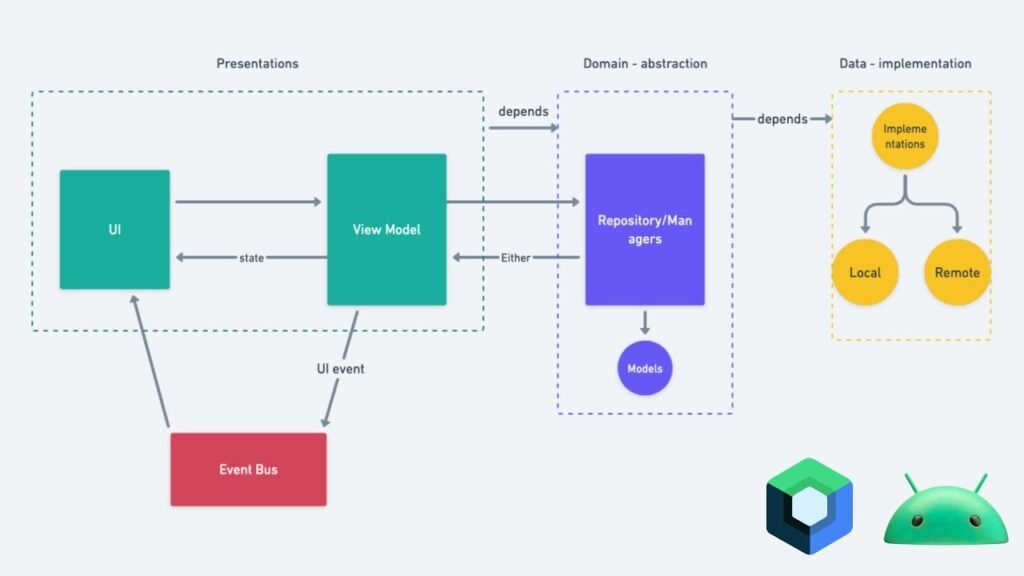
For many teams, this kind of architecture for performance‑focused apps is part of how they design mobile app development services and enterprise mobile app development projects.
2. App Memory Management: Avoiding Bloat and Leaks
Poor app memory management is one of the most common causes of mobile app freezing scenarios:
- Apps that slowly grow in memory until the system kills them
- Memory leaks that hold onto views, callbacks, or context
- Excessive allocations that trigger GC pressure and stutter
a) How Apps Leak Memory (Android & iOS)
Common patterns create memory leaks:
- Retaining the Activity / App / View in a long‑lived context (e.g., static variables, singleton caches without weak references).
- Holding onto listeners or callbacks past their useful life (e.g., observer patterns that never unregister).
- Over‑caching bitmaps or large objects without an eviction strategy.
On Android, tools like Android Profiler and Memory Profiler help you:
- Capture memory heap dumps.
- Inspect retention paths and find who’s holding onto views.
- Track allocation trends over time.
On iOS, Xcode Instruments (especially the Leaks and Allocations instruments) lets you:
- Discover iOS memory leaks.
- Monitor object counts and memory pressure.
- Identify expensive allocators and spot repeated allocations.
These investigations are often part of mobile app optimization audits and software development services engagements that focus on memory leak optimization and runtime health.
b) Best Practices for Mobile Memory Caching
To keep app memory management under control:
- Use weak references where possible (e.g., WeakReference in Android, weak in Swift).
- Limit bitmap caches and use LRU caches with size caps.
- Reuse objects and pools in games and lists (RecyclerView‑style item‑pooling).
- Avoid holding onto large amounts of data in memory when you can stream or page it.
These are part of “best practices for mobile memory caching”, and they directly reduce battery consumption on mobile by cutting unnecessary GC churn. They also align with how teams structure mobile app development projects that must run well on lower‑end devices.
c) Memory‑Sensitive UIs and Lists
In RecyclerView and equivalent list‑style views, optimizing RecyclerView items is critical:
- Don’t do heavy work in onBindViewHolder.
- Cache inflated views and bindings using ViewHolder‑style patterns.
- Recycle bitmaps and other expensive resources instead of rebinding them every frame.
On React Native apps, the same principle applies: excessive JavaScript→native messaging and unmanaged object references can create high memory usage and jank. This is why many React Native mobile app projects benefit from mobile app optimization reviews that focus on memory‑efficient UIs and data pipelines.
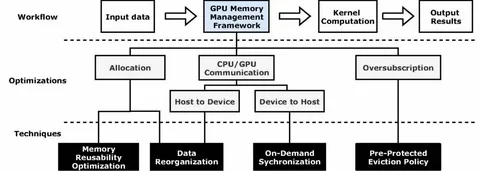
3. GPU Load Balancing: Reducing Overdraw and Drawing Calls
Even if memory is fine, your app can still feel laggy, like a mobile game fix material, because the GPU is overloaded. Two classic issues:
- Excessive GPU draw calls (one draw per UI element).
- Overdraw (the same pixel rendered many times, e.g., complex transparency layers).
a) GPU, Draw Calls, and Overdraw
- A draw call is a GPU instruction to render a batch of geometry.
- More draw calls mean more CPU‑to‑GPU work and more overhead.
- Overdraw occurs when the GPU redraws the same screen region multiple times.
- This is common with layered UIs, shadows, and transparency effects.
Tools like Android GPU debugger tools, Xcode Metal System Trace, and Unity Profiler can help you:
- Count GPU draw calls.
- Visualize overdraw (Android GPU overdraw tools).
- See frame‑by‑frame budgets and where time is spent.
These GPU investigations mirror how performance‑focused software development services teams profile mobile app development and enterprise mobile app development projects.
b) GPU Optimization Techniques
To optimize GPU load:
- Merge draw calls:
- Use texture atlases instead of many small bitmaps.
- Combine UI elements into a single batch where possible.
- Limit overdraw:
- Flatten UI layers.
- Reduce unnecessary transparency and shadow layers.
- Use more efficient geometry:
- Simplify complex polygons and meshes.
- Limit dynamic meshes in real‑time features.
- Batch UI rendering:
- Prefer batched UI components over many nested containers.
- Prefer batched UI components over many nested containers.
These are GPU optimization techniques that directly answer “What is the best way to optimize GPU load on Android?” and “How to fix frame rate drops in mobile games?” They also fit into mobile app optimization workflows that aim for smooth 60‑FPS rendering and reducing GPU draw calls.
4. Unity, OpenGL, and Metal Optimization
For Unity mobile game optimization, extra considerations include:
- Shader complexity (fragment shaders that are too heavy per‑pixel).
- Batching and instancing (combining geometry to reduce draw calls).
- Mip‑mapping and texture compression (to reduce memory bandwidth and GPU work).
In native OpenGL / Metal optimization, you focus on:
- Pipeline state management (avoiding frequent shader or state changes).
- Render passes and frame‑buffer optimization (avoiding repeated full‑screen passes).
- Texture formats and layouts (compressed formats, efficient alignment).
These are part of “latest 2026 methods” and “expert guide”‑style optimizations that performance‑oriented teams incorporate into software development services and mobile app development projects.
5. Achieving 60‑FPS Frame‑Rate Stability
Users perceive smoother experiences when the frame rate is stable and consistent:
- 60 FPS (16.6 ms per frame) is the gold standard.
- Between 45–60 FPS, the app may feel “a bit choppy” but usable.
- Below 30 FPS, it’s often perceived as laggy.
a) How to Diagnose FPS Drops
For “how to fix app stuttering 2026”‑style issues:
- Use on‑device FPS counters (Android’s GPU Inspector, iOS’s Metal System Trace, Unity Profiler).
- Capture traces and look for frames that exceed ~16 ms.
- Check what’s happening on CPU vs GPU in those frames.
Common culprits:
- Heavy work on the main thread (networking, JSON parsing, complex layout).
- Expensive shaders or UI layouts.
- UI‑level GC spikes caused by repeated allocations.
These debugging workflows are often part of mobile app optimization engagements that help clients address app performance issues and frame‑rate stability.
b) Best Practices for Frame‑Rate Stability
To achieve a stable 60 FPS in Unity and in native apps:
- Offload work from the main thread:
- Use background threads or coroutines for heavy work.
- Ensure the UI thread is not blocked by long‑running tasks.
- Batch UI and animation work:
- Avoid updating UI from multiple threads without synchronization.
- Prefer deferred layout updates where possible.
- Optimize shaders and rendering:
- Keep fragment shaders as simple as possible.
- Use shared shaders and materials.
- Profile every frame:
- Monitor both memory usage and GPU load in every profiling pass.
- Monitor both memory usage and GPU load in every profiling pass.
This is the core of “how to fix frame rate drops in mobile games?” and “mobile app loading time optimization”‑style guidance, and it aligns with software development services that emphasize performance‑aware architecture and implementation.
Table 1: Common Performance Problems and Fixes
| Problem | Likely cause | How to fix |
| App stuttering/jank | Heavy work on the main thread or GC spikes | Offload work, reduce allocations, optimize UI layout. |
| App not responding (ANR) | Long‑running tasks on the main thread | Move heavy work off the main thread; use timeouts and cancellation. |
| High memory usage | Memory leaks, large caches, repeated allocations | Profile, use weak references, cap caches, and reduce object creation. |
| GPU‑driven lag / low FPS | Too many draw calls, overdraw, heavy shaders | Merge draw calls, flatten UI, simplify shaders. |
| High battery usage | GPU‑intensive rendering, constant polling | Optimize GPU, reduce refresh rates, and use background‑efficient APIs. |
This table answers “App not responding (ANR) fix”, “mobile app freezing solution”, and “Laggy mobile game fix”‑style queries with concise, actionable steps that are often validated in mobile app optimization engagements.
Table 2: Profiling Workflow Overview
| Step | Android | iOS | Cross‑Platform / Engines |
| Memory | Android Memory Profiler | Xcode Instruments – Allocations | Unity Profiler, custom memory logs |
| GPU / Draw calls | GPU Inspector / GPU overdraw tools | Metal System Trace | Unity Profiler, custom GPU‑timing tools |
| CPU / Main thread | CPU Profiler, Systrace | Time Profiler | Unity Profiler, custom timing counters |
| FPS / Stuttering | GPU Inspector FPS counter | Metal System Trace FPS | Engine‑built FPS counters |
This structure makes it easy to answer “Advanced profiling with Android Profiler & Xcode Instruments” and “resource management strategies for high‑performance apps”‑style intents that align with mobile app performance audits and software development services engagements.
6. Long‑Tail Fixes: ANR, Freezing, and High Battery Usage
App Not Responding (ANR) Fix
- ANR occurs when the main thread is blocked for too long.
- Causes:
- Long‑running network or computational work on the UI thread.
- Deadlock or expensive layout / UI updates.
- Fixes:
- Use background threads (Worker, coroutines, DispatchQueue.global).
- Break large tasks into smaller chunks.
- Use timeouts and cancellable tasks.
These patterns are commonly reinforced in mobile app development services and software development services that teach performance‑aware coding as part of the product development process.
Mobile App Freezing Solution
- Freezing is often caused by:
- Heavy work on UI thread.
- GPU‑bound frames (e.g., too many draw calls or expensive shaders).
- Solutions:
- Profile with Android Profiler / Xcode Instruments.
- Simplify UI and merge draw calls.
- Use off‑thread work and batched updates.
This kind of mobile app freezing solution is a core outcome of mobile app optimization and performance‑driven software development services.
Laggy Mobile Game Fix
- In Unity mobile game optimization, lag often comes from:
- Expensive physics or animation updates.
- Draw‑call‑heavy scenes.
- Inefficient UI on top of the game.
- Fixes:
- Batch and instance geometry.
- Use GPU‑friendly shaders.
- Reduce UI complexity and minimize UI‑frame overlap.
This aligns with mobile app development services that support Unity‑based gaming and real‑time apps with performance‑first engineering.
Fixing High Battery Usage
To reduce battery consumption on mobile:
- Optimize GPU usage (reduce draw calls and overdraw).
- Avoid polling and unnecessary background work.
- Use Doze‑aware and battery‑efficient APIs.
- Profile with dedicated power‑profiling tools (e.g., Android’s Battery Historian, iOS Energy Log).
Efficient power usage is a core part of mobile app optimization and enterprise mobile app development engagements that target both user experience and resource efficiency.
7. Mobile‑Specific Optimizations: APKs, Assets, and Memory
Beyond in‑app logic, you can optimize APKs and assets:
- APK shrinking with ProGuard / R8:
- Remove unused code and resources.
- Keep only what’s needed for the target devices.
- Split APKs (e.g., Android App Bundle):
- Ship only the resources for the user’s device (language, density, ABI).
- Reduces download size and on‑device storage, which also helps performance.
- Asset bundles (e.g., in Unity or game engines):
- Split large assets and load them on demand instead of at startup.
- Helps mobile app loading time optimization and reduces memory usage in React Native apps.
These are mobile‑specific SEO / ASO‑style keywords that also help memory leaks optimization by avoiding unnecessary in‑memory resources. Teams often evaluate these patterns during mobile app optimization reviews and mobile app development projects.
FAQs
How to fix app stuttering in 2026?
Fix app stuttering by:
- Profiling memory and GPU with Android Profiler / Xcode Instruments.
- Offloading heavy work from the main thread.
- Reducing draw calls and overdraw.
- Simplifying UI and avoiding unnecessary allocations.
How to reduce memory usage in React Native apps?
To reduce memory usage in React Native apps:
- Avoid repeated UI‑tree rebuilds.
- Use FlatList‑style optimized lists instead of long vertical ScrollViews.
- Reduce excessive setState triggered by frequent source changes.
- Profile native memory usage with platform‑specific tools.
How do I achieve a stable 60 FPS in Unity?
To achieve a stable 60 FPS in Unity:
- Reduce draw calls and shader complexity by using batching, instancing, and GPU‑friendly shaders.
- Optimize animation and physics updates to avoid per‑frame spikes.
- Profile on target devices and trim expensive features on lower‑end hardware.
- Minimize UI overlay complexity and avoid heavy UI‑compositing on top of the game.
What is the best way to optimize GPU load on Android?
The best way to optimize GPU load on Android is:
- Merge draw calls and reduce overdraw with texture atlases and flattened UI layers.
- Use efficient shaders and compressed textures.
- Profile with Android GPU tools and GPU‑overdraw overlays.
- Avoid unnecessary UI transparency and shadows.
Steps to fix memory leaks on iOS?
For memory leaks on iOS, common steps include:
- Use Xcode Instruments – Leaks to find leaked objects and inspect retention paths.
- Use weak references where possible for delegates, closures, and event handlers.
- Avoid retaining large objects longer than needed and cap caches.
- Profile native memory and correlate it with perceived mobile app freezing solution patterns.
Conclusion
Mastering mobile performance optimization means systematically addressing app memory management, GPU load balancing, and frame‑rate stability using Android Profiler, Xcode Instruments, Unity Profiler, and modern 2026 best practices. This includes diagnosing memory leaks, excessive draw calls, and ANR‑style stalls, then applying APK‑shrinking, asset‑bundling, and GPU‑friendly rendering techniques that keep your app smooth and battery‑efficient.
If you’re dealing with “app not responding (ANR) fix”, “mobile app freezing solution”, or “laggy mobile game fix” scenarios and want help benchmarking, profiling, and refactoring your app or game for stable 60 FPS and lower memory/GPU load, Pixact Technologies can help.
Our mobile app development and software development services teams specialize in performance‑driven architectures, mobile performance benchmarking techniques 2026, and resource management strategies for high‑performance apps, giving you a more maintainable, scalable, and user‑friendly product.